
Claude MCP Setup: Add, Configure, and Debug Local MCP Servers
A practical guide to adding MCP servers to Claude-style clients, configuring local servers, and debugging common connection failures.
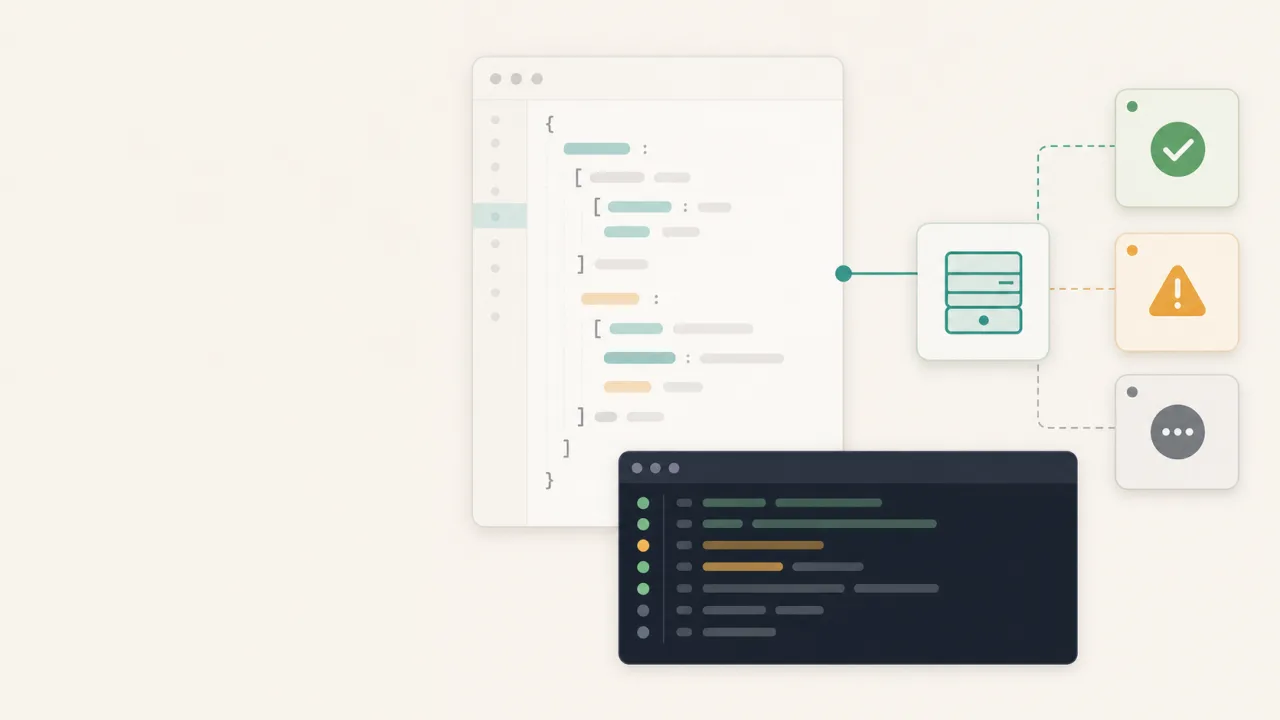
Claude MCP setup usually fails in small, ordinary ways. The command is wrong, or the package is not installed. The server starts on a different port. The config file is valid JSON, but the environment variable is missing. The client restarts, but the local service does not.
These are ordinary integration problems.
This guide explains the setup model, the config shape to expect, and the debugging path when a local MCP server does not appear where it should.
The Pieces In A Claude MCP Setup
A typical local MCP setup has three pieces:
Claude-style client
  |
  | starts or connects to
  v
MCP server process
  |
  | reads, proxies, or calls
  v
Local files, IDE tools, APIs, or services
The client launches or connects to the server, and the server exposes tools and resources. Your local machine provides the actual context: files, editor state, credentials, package managers, or project services.
When setup fails, identify which piece is failing before changing everything.
Add An MCP Server
Most local MCP servers are added through a client configuration file. The exact location depends on the client, but the shape is usually similar:
{
  "mcpServers": {
    "example-server": {
      "command": "npx",
      "args": ["-y", "example-mcp-server"],
      "env": {
        "EXAMPLE_MODE": "local"
      }
    }
  }
}
There are three important fields:
command: the executable the client runs.args: arguments passed to that executable.env: environment variables available to that server process.
If the server is an npm package, npx -y package-name is a common pattern. If it is a local script, the command might be node, python, or a compiled binary.
Keep the first setup simple: add one server, restart the client, and confirm that server appears before you add more.
Configure Local Servers Carefully
Local MCP servers often need paths, ports, or service endpoints.
Examples:
- A filesystem server needs allowed directories.
- An IDE bridge needs to know which editor family to scan.
- A publishing bridge needs a site API base URL.
- A package registry server may need network access.
- A private service may need an API token.
A common failure is assuming the client-launched environment matches your shell environment, which is often not the case.
If you can run a command in your terminal, that does not automatically mean Claude can run the same command with the same PATH, HOME, or secret variables. Put required values into the MCP server config explicitly when possible.
Debugging Checklist
When a server does not show up, check these in order.
1. Is The JSON Valid?
A missing comma or quote can break the whole config.
Use a JSON validator or run:
node -e "JSON.parse(require('fs').readFileSync('path/to/config.json', 'utf8'))"
Do this before debugging the server itself.
2. Can The Command Run Outside The Client?
Copy the command and args into a terminal.
If the config says:
"command": "npx",
"args": ["-y", "example-mcp-server"]
Then test:
npx -y example-mcp-server
If that fails, the client is not the problem yet.
3. Are Required Environment Variables Present?
Look for missing tokens, base URLs, project paths, or mode flags.
Prefer explicit config:
"env": {
  "API_BASE_URL": "https://example.com",
  "PROJECT_ROOT": "/absolute/path/to/project"
}
Avoid relying on hidden shell startup files.
4. Is The Server Waiting On The Right Transport?
Some MCP servers communicate over stdio. Others proxy to local HTTP services. If a server expects one transport and the client expects another, it may appear to hang.
Check the server README for transport assumptions.
5. Is A Local Port Moving?
IDE-side MCP servers may bind to local ports that change between launches.
That is where bridge tools help. A bridge such as MCPxHub can scan expected local ranges and keep a Claude-style client pointed at whichever IDE MCP server is actually alive.
A hardcoded port can work once, but discovery holds up better when the IDE controls the server lifecycle.
Common Setup Mistakes
The most common mistakes are:
- Using a relative path where the client needs an absolute path.
- Installing a package globally but launching it through an environment that cannot find it.
- Forgetting to restart the client after editing config.
- Putting secrets in the shell instead of the MCP server environment.
- Running multiple servers with the same name.
- Assuming a server is broken when the underlying API token is invalid.
- Forgetting that corporate proxies or firewalls can block package downloads.
Treat MCP setup like any other local integration and make one change at a time.
A Practical Local Workflow
For a reliable Claude MCP setup, use this sequence:
- Add one server.
- Use the simplest possible config.
- Restart the client.
- Confirm the server appears.
- Call one read-only tool.
- Add paths, credentials, or advanced options.
- Test again.
- Only then add more servers.
This avoids the worst debugging pattern: adding five servers, three tokens, and two path changes at once, then guessing which one broke.
When To Use A Bridge
Use a bridge when the target service is local but unstable from the client's point of view.
IDE integrations are a good example. The IDE may start its own MCP server, choose a port, restart it, or bind differently after an update. A desktop client does not always know where that server moved.
MCPxHub is designed for that layer. It works alongside the IDE plugin instead of replacing it, and helps a Claude-style MCP client find and proxy to the live local IDE server:
Claude-style client
  |
  v
MCPxHub
  |
  v
Live local IDE MCP server
The result is less config babysitting and fewer broken sessions after restarts.
Keep The Boundary Small
The fastest way to make MCP setup risky is to expose too much.
Start with read-only tools. Add write actions only when the workflow needs them. Keep filesystem access scoped. Prefer project directories over home directories. Avoid giving an assistant broad shell access unless you have a strong reason.
A good Claude MCP setup exposes the right tools with the right boundaries, and that is what keeps it useful after the demo.