
How to Debug MCP Server Connection Problems
A practical checklist for fixing MCP server connection failures, including config files, commands, environment variables, ports, and logs.
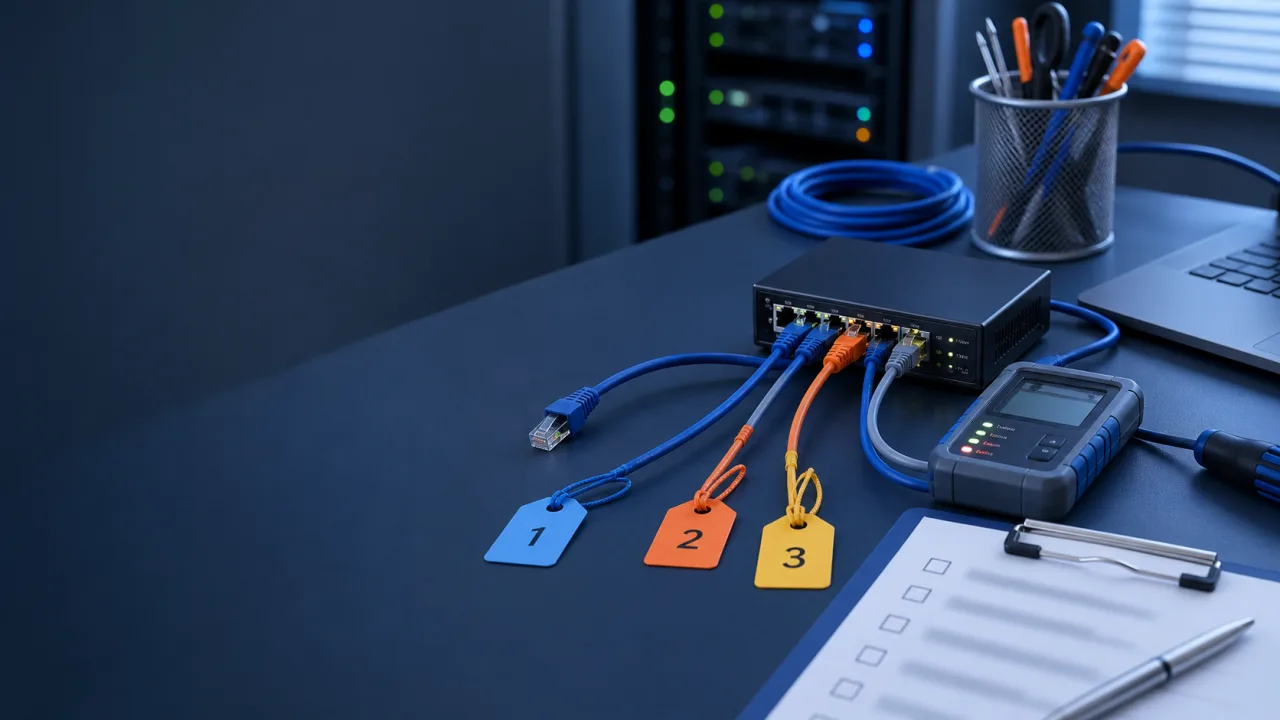
Most MCP connection problems are config, process, path, or port problems, and only a few involve the protocol itself.
Fixing them is usually easy. The harder part is checking them in the right order instead of changing five things at once.
Use this checklist when a local MCP server does not show up, starts and exits immediately, or appears connected but tools fail.
First, Identify The Failure Mode
Before you edit the config, name the symptom:
- The client does not list the server.
- The server starts, then exits.
- The server is listed, but no tools appear.
- Tool calls time out.
- Tool calls return permission errors.
- A local IDE or HTTP server cannot be found.
- It works in the terminal but not from the client.
Each symptom points to a different layer.
If the server is not listed, check the client config and launch command. If tools time out, check the server process and transport. If it works in your terminal but not from the client, check environment variables and PATH.
Validate The Config File
Many MCP issues begin with invalid JSON.
A missing comma, a trailing comma, or a quote in the wrong place can make the client ignore a server block. Validating the config before you debug the server is dull work, but it saves time.
For a JSON config file:
node -e "JSON.parse(require('fs').readFileSync('path/to/config.json', 'utf8'))"
Then check:
- Is the server name unique?
- Is
commandspelled correctly? - Are
argsan array? - Are environment variables under
env? - Did you restart the client after editing?
Run The Command Outside The Client
Copy the command and arguments from the config and run them directly.
If the config contains:
{
  "command": "npx",
  "args": ["-y", "some-mcp-server"]
}
Run:
npx -y some-mcp-server
If that fails, the MCP client is not the problem yet. Fix the command first.
Common failures:
- Package name is wrong.
- Node is not installed in the environment the client uses.
- The package requires a newer Node version.
- A local script path is relative when it should be absolute.
- The process expects an environment variable.
Do not debug protocol traffic until the process can start.
Compare Terminal Environment And Client Environment
This is one of the most common local setup traps.
Your shell may have a different PATH, HOME, Node version, package manager, or secret variables than the process launched by the MCP client.
Check anything the server depends on:
PATHHOMENODE_OPTIONS- API tokens
- project root paths
- proxy settings
- package manager location
When possible, put required values in the MCP config explicitly:
{
  "env": {
    "PROJECT_ROOT": "/absolute/path/to/project",
    "API_BASE_URL": "https://example.com"
  }
}
Avoid relying on shell startup files unless you know the client loads them.
Check Transport Assumptions
Many local MCP servers use stdio. Some tools also proxy to HTTP services behind the scenes. Problems happen when you mix those layers up.
Ask:
- Does the MCP client launch the server over stdio?
- Does the server expect to be called over HTTP instead?
- Does the server proxy to another local service?
- Is that local service already running?
- Is the port stable or discovered dynamically?
If a server is a bridge, there may be two connections to debug:
client -> MCP bridge
MCP bridge -> local target
The first can be healthy while the second is broken.
Ports Move More Often Than You Think
IDE-side MCP servers can bind to local ports that change across restarts.
Hardcoding a port works until the IDE restarts, another process takes the slot, or a plugin update changes its behavior. When that happens, the MCP client may still connect to the bridge but the bridge cannot find the target.
Check:
- Is the expected port listening?
- Did the IDE plugin start its server?
- Did the port range change?
- Is another process using the port?
- Does the bridge scan the right IDE type or range?
For this class of problem, discovery beats hardcoded configuration. A bridge like MCPxHub is useful because it treats local IDE MCP servers as moving targets.
Read Logs From Both Sides
Look at client logs and server logs.
Client logs tell you whether the server launched, crashed, or failed during handshake. Server logs tell you whether the process received a request, rejected inputs, or failed while calling a downstream service.
For a useful bug report, capture:
- The server config block with secrets removed.
- The exact command and args.
- Node or runtime version.
- The first server error.
- Whether the command works outside the client.
- Whether the same failure happens after restart.
Do not paste tokens, cookies, private paths, or full environment dumps into public issues.
Test A Read-Only Tool First
If the server appears connected, call the safest tool first.
Prefer:
- list tools
- read resource
- get version
- list allowed paths
- search metadata
Avoid testing with a write operation. If the server has permission problems, a read-only call is easier to reason about and safer to retry.
If read-only tools work but write tools fail, the connection is probably fine. Now you are debugging permission, validation, or downstream API policy.
Common Fixes
Most fixes are simple:
- Use absolute paths.
- Restart the client after config changes.
- Pin the command to the runtime you expect.
- Move required environment variables into the server config.
- Install or update the package used by the command.
- Check the local port or target service.
- Reduce the server config to one server while debugging.
- Update the server package if the client expects a newer protocol behavior.
Apply them in sequence: make one change, retest, then move on.
A Clean Debugging Flow
Use this order to keep the problem small:
- Validate JSON.
- Confirm the client sees the config.
- Run the command manually.
- Compare environment variables.
- Check runtime version.
- Check transport.
- Check local ports or downstream services.
- Read client and server logs.
- Test one read-only tool.
- Add back advanced settings.
An MCP server is a process with a contract. Debug it like one, and most connection problems become normal engineering work.