
How to Get Real-Time Quota Visibility in Google Antigravity IDE
Learn how to monitor Gemini, Claude, and GPT quotas in real time within Google Antigravity IDE using the open-source Antigravity Panel extension.
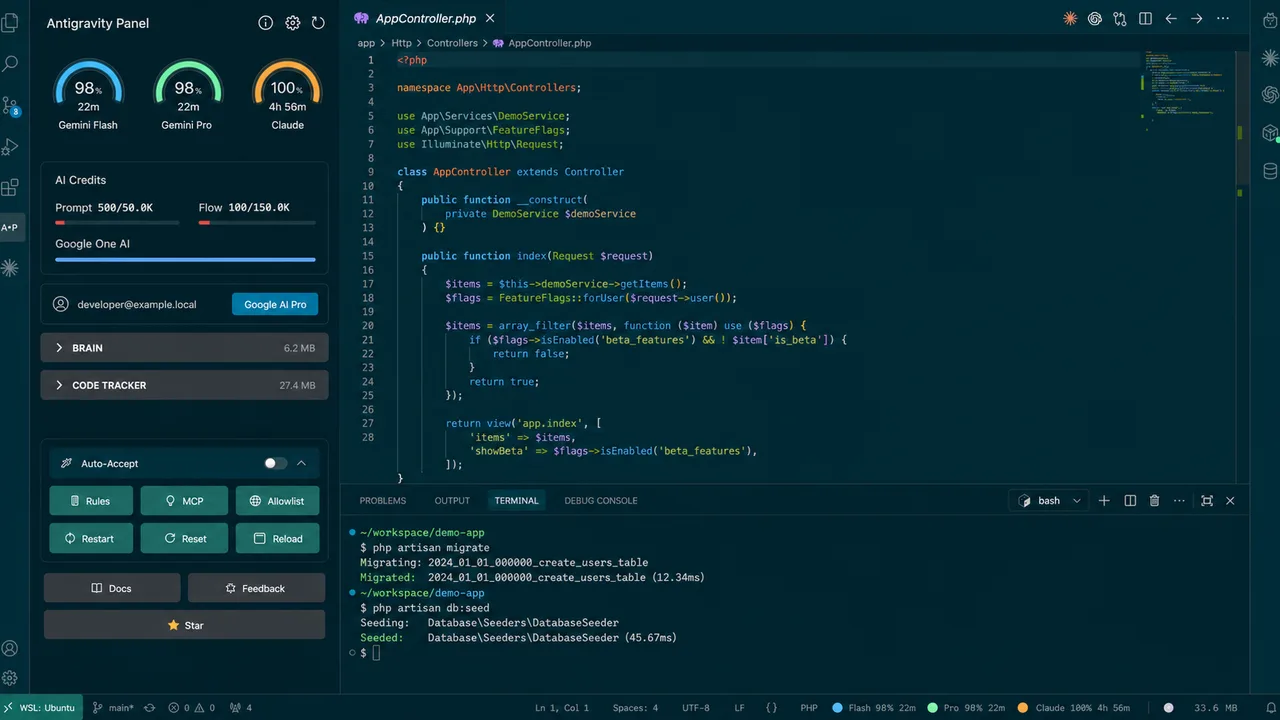
Google Antigravity IDE gives you access to Gemini, Claude, and GPT models, but almost no visibility into how much quota you have used or how much is left. You find out when things stop working.
This tutorial walks through how to get real-time quota visibility directly in your sidebar, without leaving the IDE.
The Problem: Opaque Quota Limits in Antigravity IDE
Antigravity IDE has a built-in quota indicator, but it is minimal, a rough status that does not tell you:
- Which model group is running low
- How fast you are consuming quota
- How long until you hit the limit at your current pace
- How much cache is accumulating on disk
If you are doing heavy agentic work, these gaps cause real interruptions.
The Solution: Antigravity Panel
Antigravity Panel (formerly published as Toolkit for Antigravity) is an open-source extension that adds a dedicated sidebar panel with quota monitoring, usage trends, and cache management.
The quota and cache features read directly from the local Antigravity language server. There are no external API calls, no account access, and no data leaves your machine. The optional AI commit-message generator is a separate feature and does send your staged diff to Anthropic's API if you configure a Claude API key for it.
Step 1: Install the Extension
In Antigravity IDE:
- Press
Ctrl+Shift+Xto open Extensions - Search for
Antigravity Panel - Click Install
Or install directly from:
After installing, click the Antigravity icon in the sidebar activity bar.
Step 2: Understand the Quota Dashboard
The panel shows quota grouped by model family:
- Gemini (Flash, Pro)
- Claude (Sonnet, Opus)
- GPT (shares a pool with Claude and is hidden by default; enable "Show GPT Quota" in Settings to see it)
Each group shows a gauge with remaining percentage. By default, the gauge turns yellow at 40% remaining or below and red at 20% remaining or below. You can adjust these thresholds in Settings by searching tfa.
If you only care about your primary model, set the status bar scope to "Primary Model Only" to reduce visual noise.
Step 3: Use Runway Prediction to Plan Your Work
The usage chart shows two numbers: the usage rate, which is how many percentage points you are consuming per hour, and the runway, which is the estimated time until quota exhaustion at the current pace.
If your runway shows 45 minutes and you are starting a long refactor, you know to either slow down or switch models before you hit the wall.
The chart range is configurable from 10 to 120 minutes. Set it to match your typical working session.
Step 4: Keep Cache Under Control
Antigravity stores AI conversation history and code context on disk under Brain Tasks and Code Tracker. These can grow large without you noticing.
In the sidebar:
- Expand the Brain or Code Tracker section
- See each task's size, file count, and creation date
- Delete tasks you no longer need
Warning: Deleting Brain tasks removes conversation history permanently. There is no undo. A confirmation prompt appears before the deletion happens.
You can also set a cache warning threshold, which defaults to 500 MB, so the status bar changes color when disk usage gets high.
Step 5: Set Up Auto-Accept for Heavy Workflows
If you are running long agentic tasks and do not want to manually approve every file edit or terminal command, the Auto-Accept toggle in the sidebar switches to hands-free mode.
Toggle it from the sidebar, or via Command Palette:
Antigravity Panel: Toggle Agent Auto-Accept
Auto-Accept approves all agent actions without review, so use it with caution.
Troubleshooting
If the panel shows "Detecting..." and never updates, run Antigravity Panel: Connectivity Diagnostics from the Command Palette. It shows exactly where the connection is failing.
If quota is not refreshing, try Antigravity Panel: Reset Status to clear the cached state, then Antigravity Panel: Refresh Quota.
If the agent is unresponsive, Antigravity Panel: Restart Agent Service reboots the background language server without restarting the full IDE.
Summary
| Feature | What It Gives You |
|---|---|
| Quota Dashboard | Real-time usage by model group |
| Runway Prediction | Time until quota exhaustion |
| Cache Manager | Disk usage visibility and cleanup |
| Auto-Accept | Hands-free agent workflows |
| Recovery Tools | Fix agent issues without IDE restart |
Antigravity Panel is open-source and free. Source and issues are available at github.com/n2ns/antigravity-panel.
Mentioned Elsewhere
Since its launch, it has been mentioned in a few community write-ups:
- Google AI Blog: For background context, the IDE itself was introduced in the official post Where we're going, we don't need chatbots: introducing the Antigravity IDE on Dev.to.
- sanj.dev quota analysis: In Google Antigravity Quota Problems: What Actually Happened and How to Fix It, tech blogger Sanj breaks down the IDE's dual-limit quota system and lists Antigravity Panel alongside other community quota-tracking extensions as an option worth trying.
- Personal endorsement on X: Paige Bailey (@DynamicWebPaige), Developer Experience Lead at Google DeepMind, posted that she "really love[s] the Toolkit for Antigravity extension," noting it tracks token consumption for Gemini, Claude (Opus/Sonnet), and GPT models with hour-by-hour stats.